Setup guide
Set up Copy2Phone in a few minutes.
You’ll sign in, make your own private Telegram bot, put it in a group with topics, and connect it to the app. You do this once. After that it’s just copy, then ControlOptionV.
You need: a Mac with macOS 15 or later, and Telegram on the device you want things on (Android, iPhone, iPad or tablet, even another computer). Telegram on the Mac is not needed.
Before you start: open the app the first time
Copy2Phone comes straight from us, not from the App Store, so the first time you open it macOS stops it and asks you to allow it. That’s normal for apps from outside the App Store, nothing is wrong, and you only do it once.
- Open Copy2Phone-1.0.2.dmg from your Downloads.
- Drag Copy2Phone onto the Applications folder in that window (if you forget, the app offers to move itself there).
- Open Copy2Phone from your Applications folder.
- macOS says “Copy2Phone” Not Opened. Click Done (not Move to Trash).
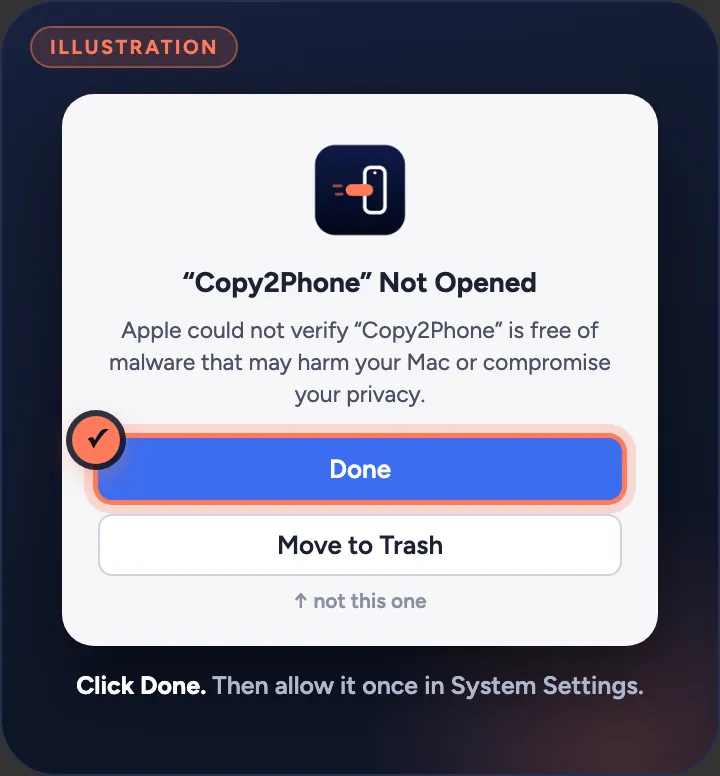
Now allow it once:
- Open System Settings (Apple menu → System Settings) and click Privacy & Security in the sidebar.
- Scroll down to Security. You’ll see “Copy2Phone” was blocked to protect your Mac.
- Click Open Anyway.
- Confirm: type your Mac password or use Touch ID, then click Open Anyway in the box that appears.
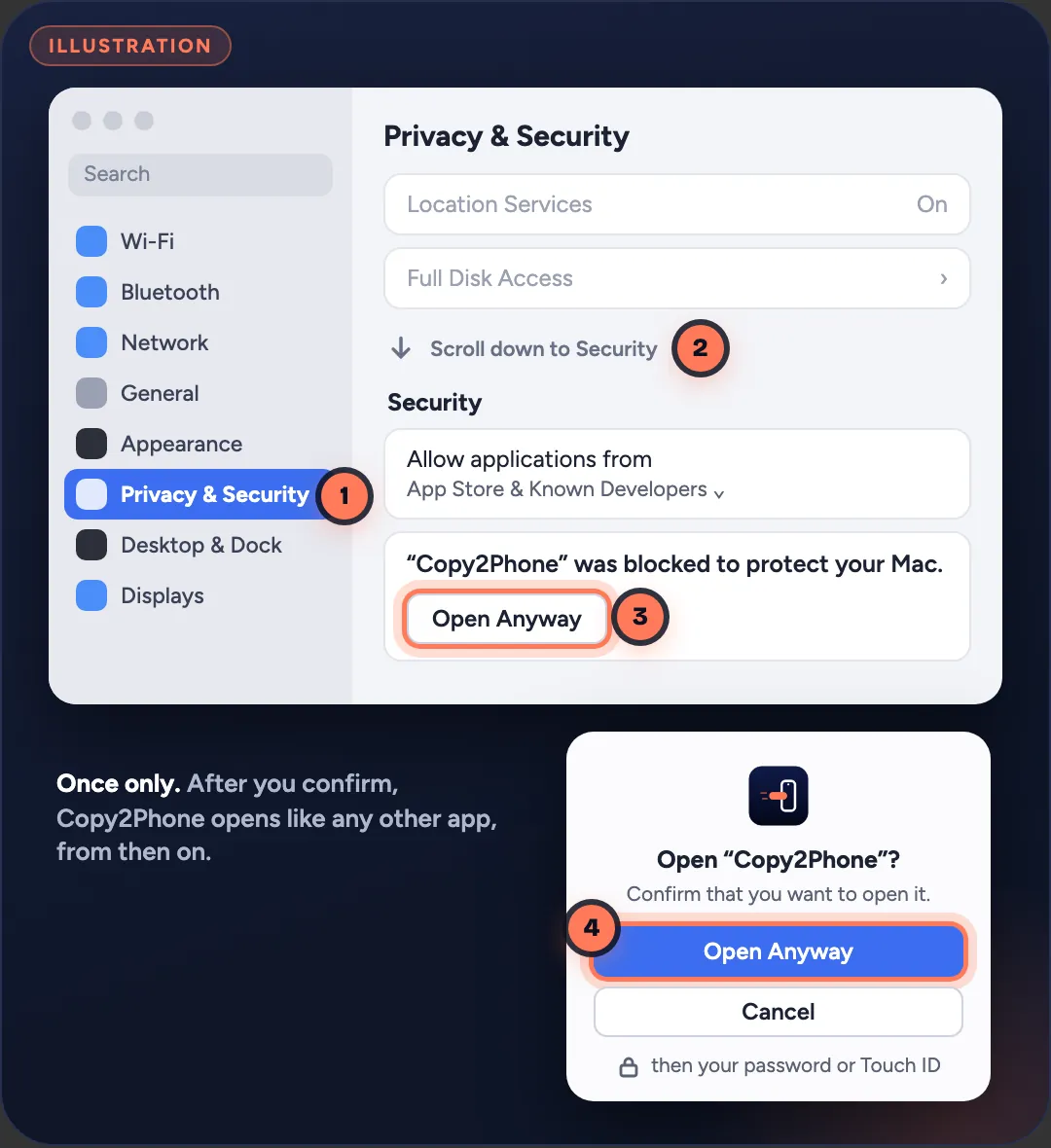
Copy2Phone opens, its icon appears in your menu bar, and its Settings window opens by itself until setup is done. From now on it opens normally.
No Open Anyway button? It only shows up for a while after you try to open the app. Open Copy2Phone again from Applications, click Done, then go back to Privacy & Security and look again.
The disk image also has How to open Copy2Phone.pdf with these same steps.
Sign in
- In Copy2Phone’s Settings window, on the Setup tab, click Sign in with Google.
- Your browser opens. Pick your Google account, then come back to Copy2Phone.
Your 7-day trial starts when you sign in. What you copy never goes through us, only straight to Telegram.
Create your bot
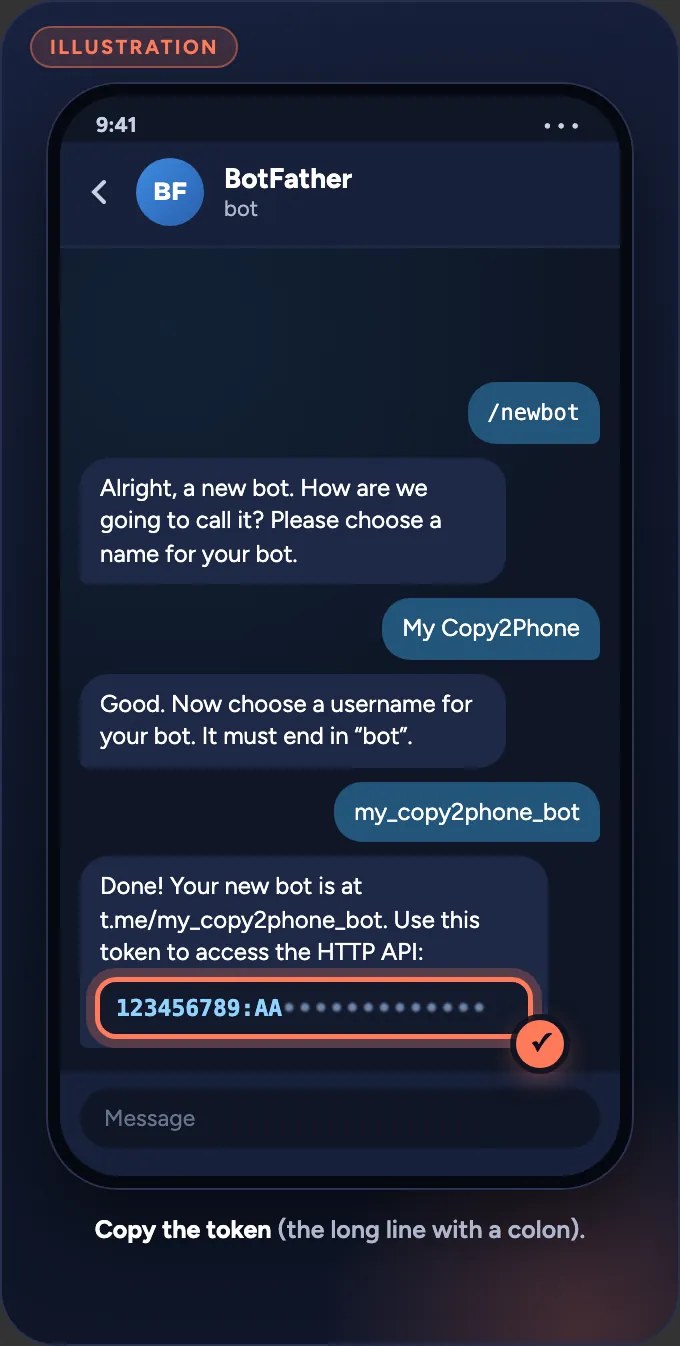
In Telegram, open @BotFather, send /newbot and follow the steps. It gives you a token. The bot is yours alone.
- Search for @BotFather in Telegram (it has a blue check mark), or click Open BotFather in Copy2Phone’s Setup tab.
- Send
/newbot. - Pick a display name (anything, like “My Copy2Phone”), then a username that ends in
bot. - BotFather replies with a token that looks like
123456789:AA…. Copy it.
Keep the token private. Anyone who has it can send messages as your bot.
Paste the token
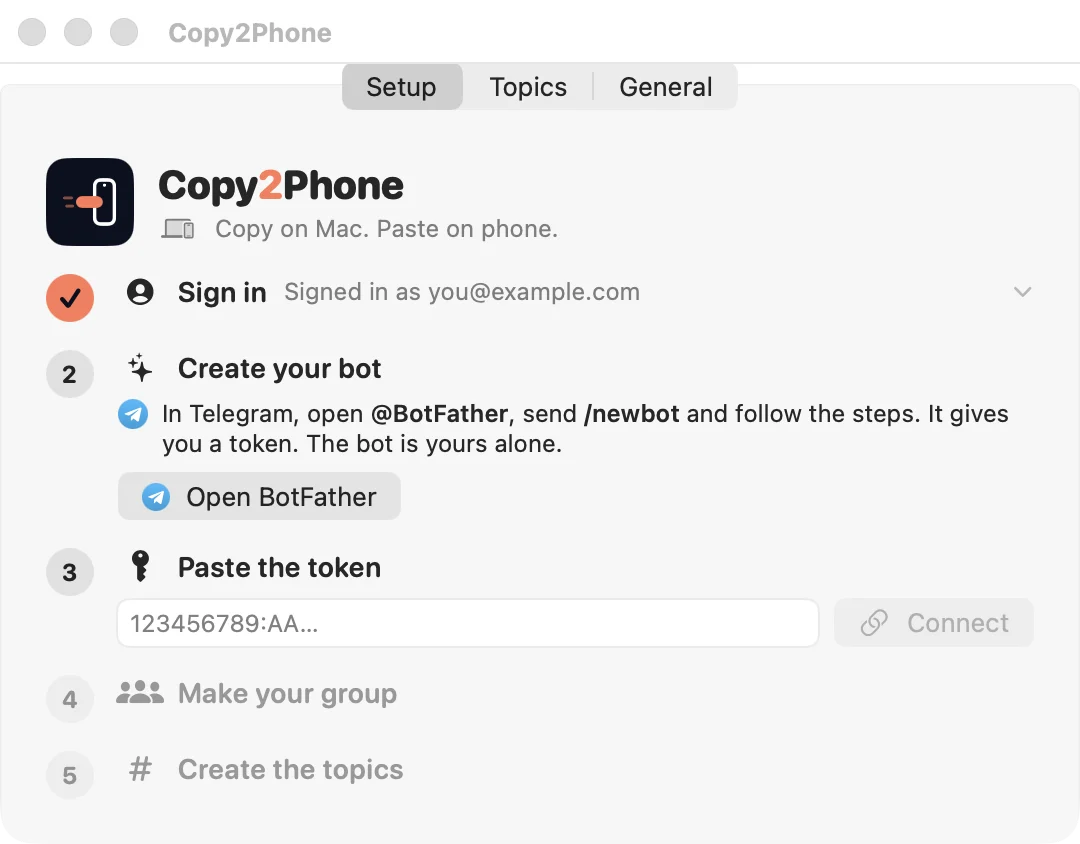
- In Copy2Phone’s Settings window, on the Setup tab, paste the token into the field.
- Click Connect.
Copy2Phone checks the token with Telegram, then shows Connected to @yourbot. The token is kept in your Mac’s Keychain.
Settings closed? Click the Copy2Phone icon in the menu bar, then Settings….
Make your group
In Telegram:
- New Group → add your bot → name it anything (like “My Outbox”) → Create.
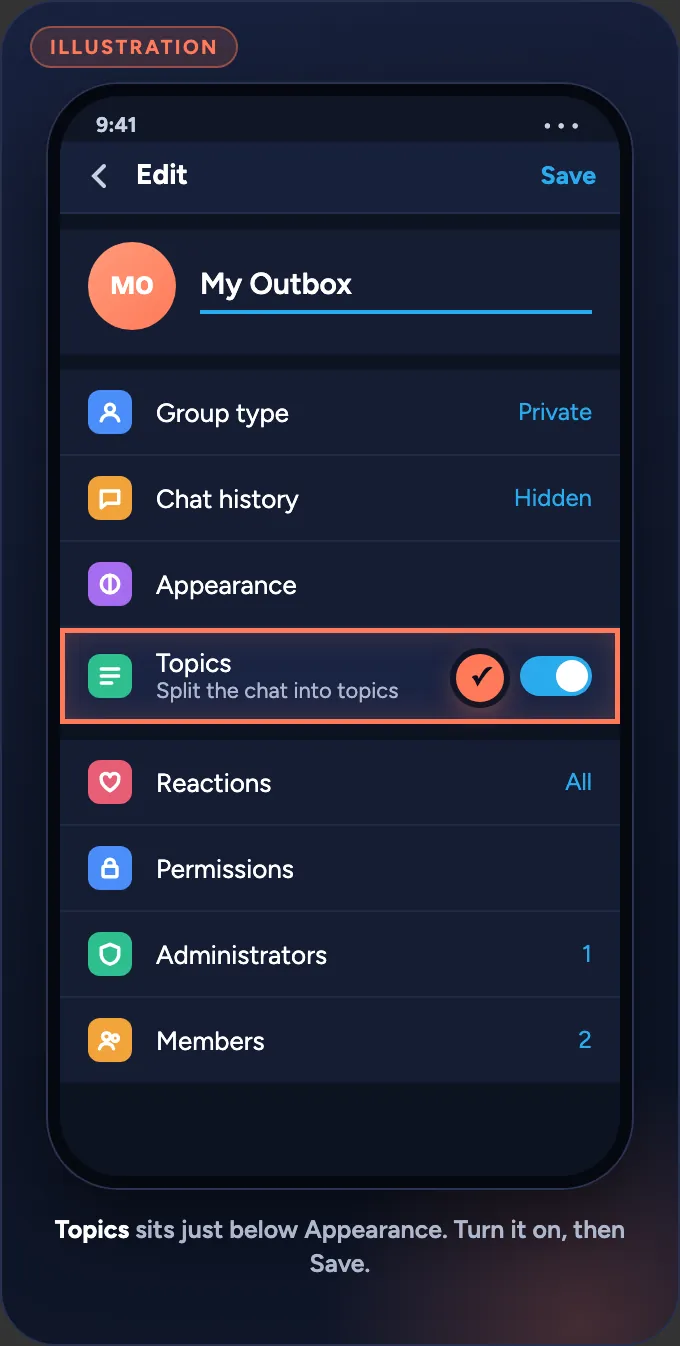
- Tap the group name at the top → tap the pencil → turn on Topics (just below Appearance) → Save.
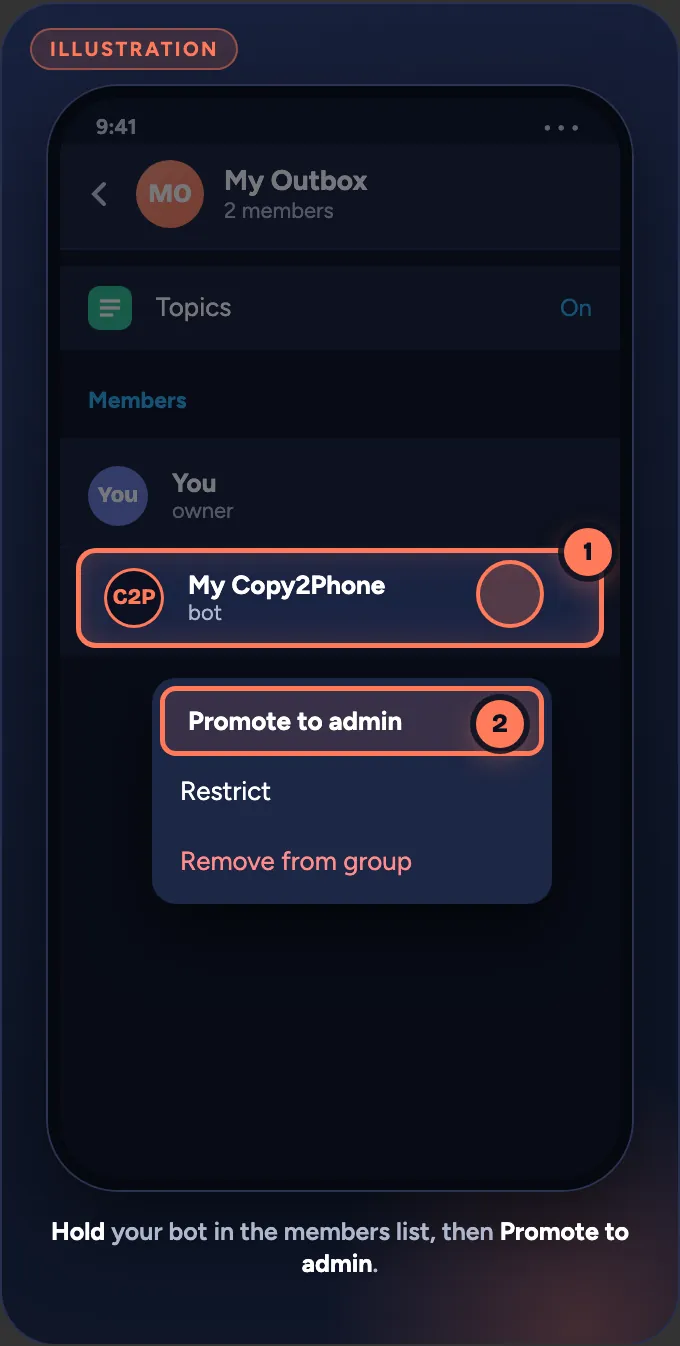
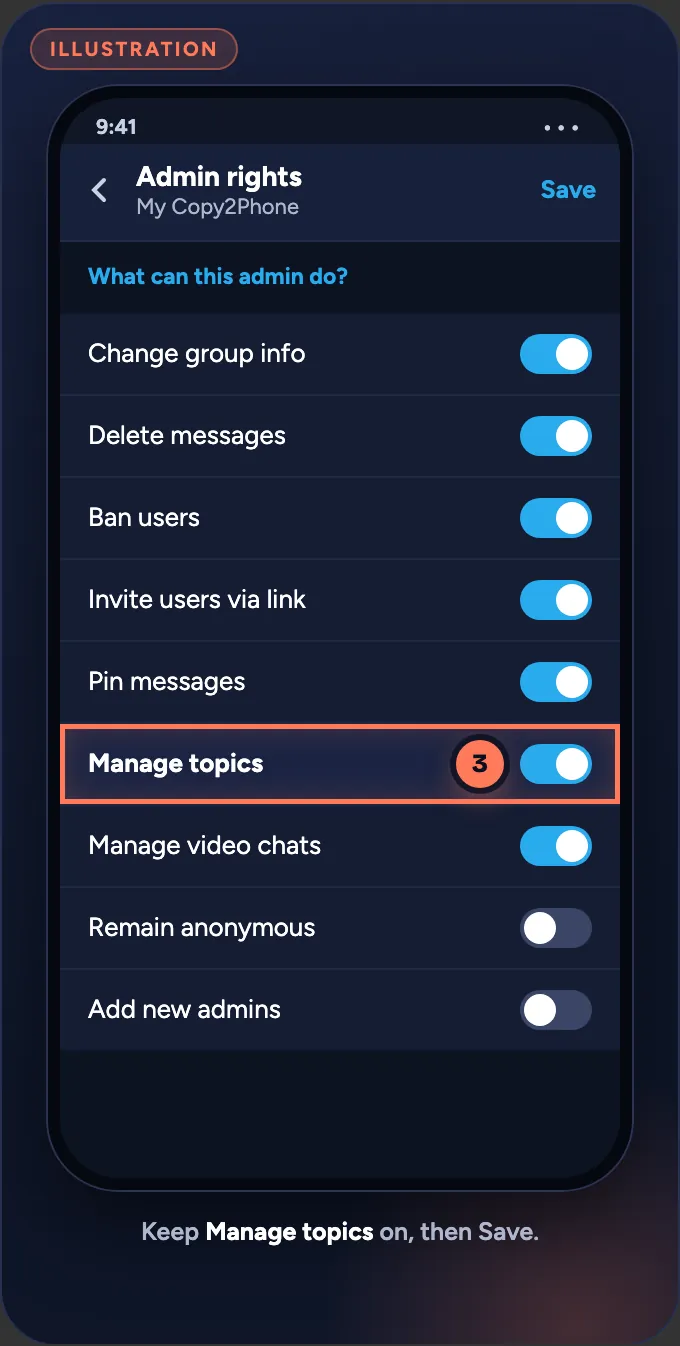
- Back on the group info, the members are listed. Hold your bot → Promote to admin → keep Manage Topics on → Save.
- Send “hi” in the group.
Then, back in Copy2Phone, click Find my group. It shows Found My Outbox (or whatever you named it).
The “hi” matters: a bot can only see a group after a message arrives there, so this is how Copy2Phone finds yours.
Create the topics
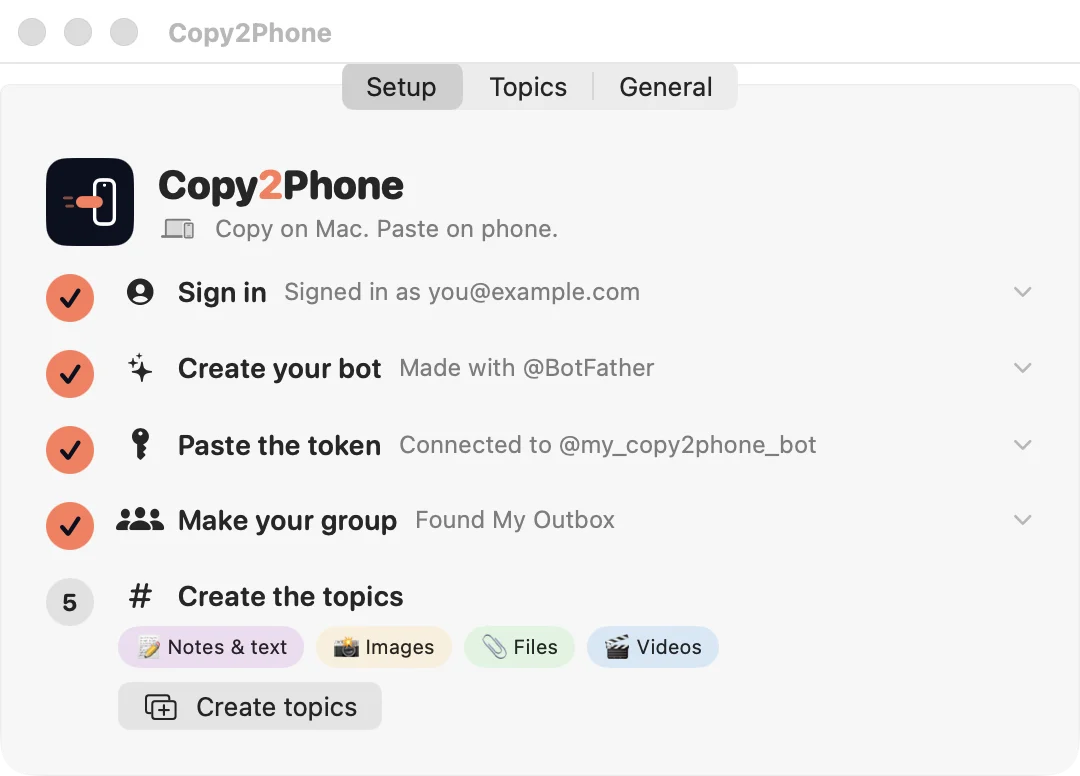
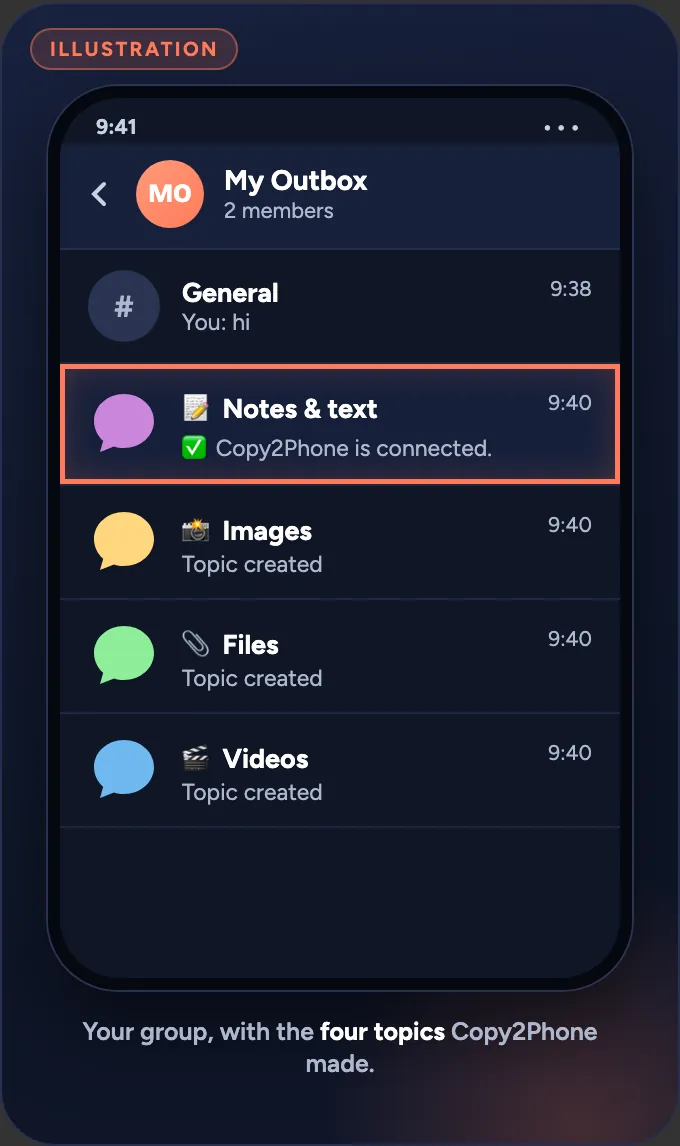
Click Create topics. Copy2Phone makes four topics in your group:
- 📝 Notes & text: copied text, tap to copy on your phone
- 📸 Images: copied pictures
- 📎 Files: files copied in Finder
- 🎬 Videos: video files
Your bot then posts ✅ Copy2Phone is connected. in Notes & text. You can rename the topics later in Settings → Topics.
Try it
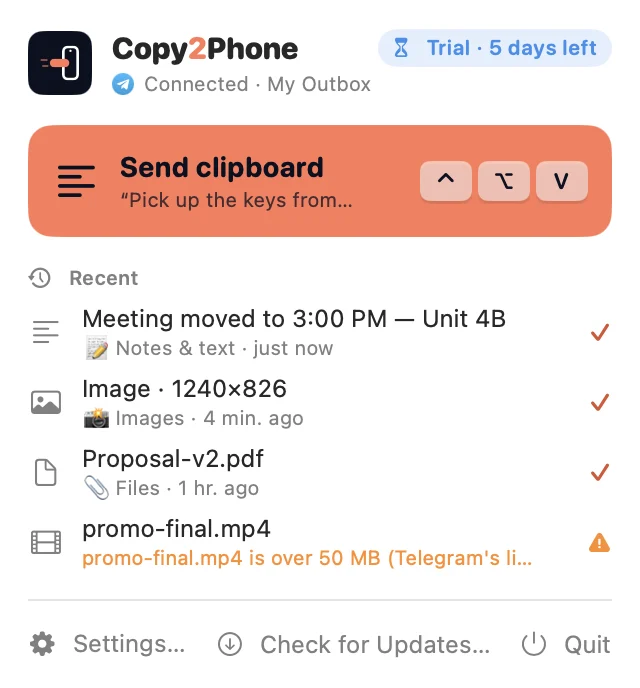
You’re all set. Copy anything, then press ControlOptionV. It shows up on your phone in its topic.
A banner at the top of your screen says where it went, like “Sent to 📝 Notes & text”, with a little sound. You can move the banner or turn the sound off in Settings → General.

Make it yours
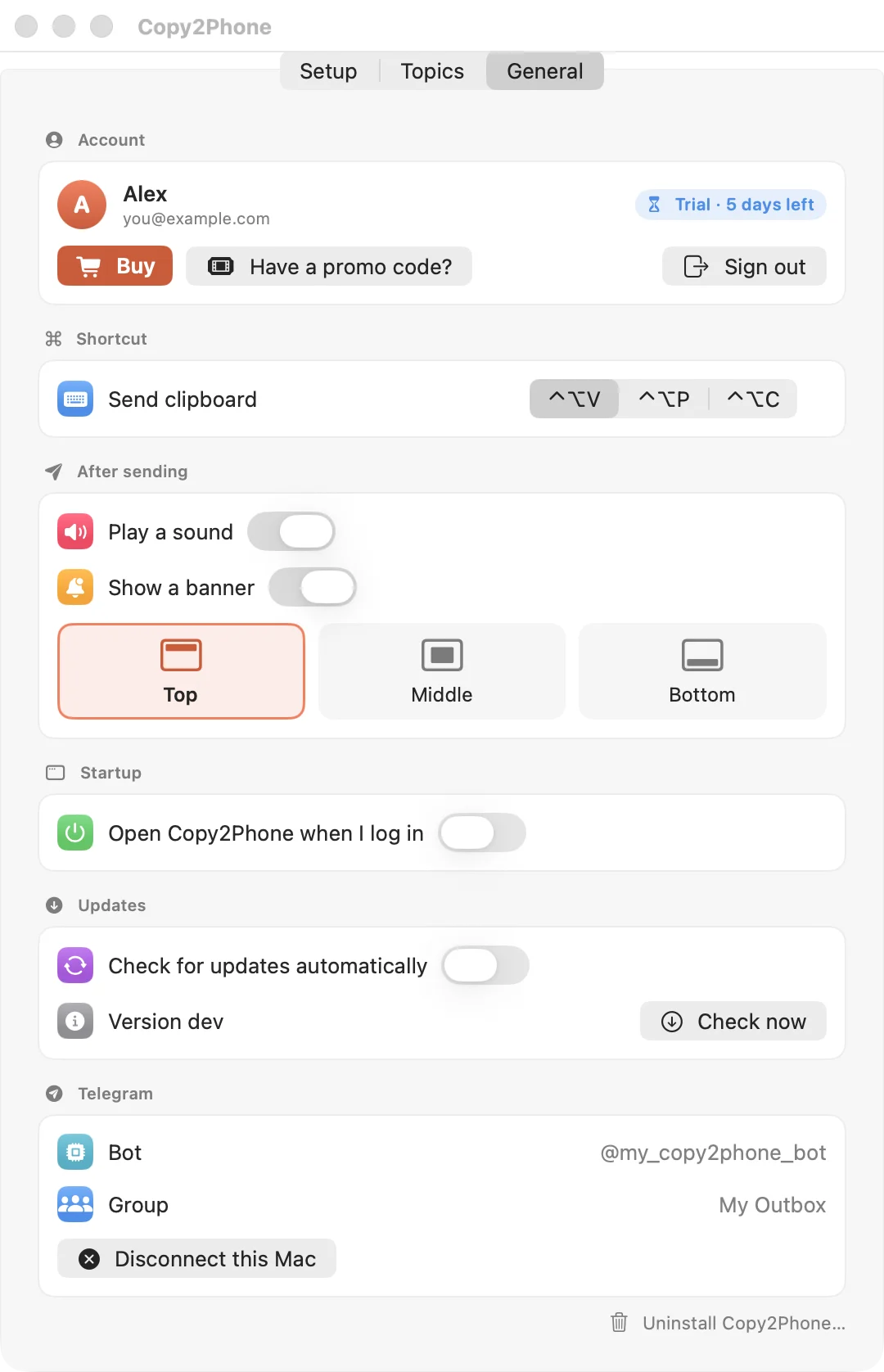
Open Settings → General to change how Copy2Phone behaves:
- Shortcut: ControlOptionV, ControlOptionP or ControlOptionC.
- After sending: play a sound, show a banner, and put the banner at the top, middle or bottom of the screen.
- Startup: open Copy2Phone when you log in.
- Updates: check automatically, or click Check now.
The topic names can be changed in Settings → Topics. To remove Copy2Phone completely, click Uninstall Copy2Phone… at the bottom of General (more in the FAQ).
Troubleshooting
| What you see | What to do |
|---|---|
| Token not accepted “Telegram didn’t accept that bot token.” | Copy the whole token from BotFather again, including the part before the colon (123456789:AA…), with no spaces. If you lost it, send /mybots to BotFather, pick your bot and open API Token. |
| No group found “No group found yet.” | Make sure the bot is a member of the group, then send “hi” in the group and click Find my group again. |
| Topics are off “Found … but Topics are off.” | Tap the group name → pencil → turn on Topics (just below Appearance) → Save. Then click Find again. |
| Couldn’t create topics | The bot needs to be an admin. In the group info, hold your bot → Promote to admin → keep Manage Topics on → Save. Then click Create topics again. |
| The shortcut does nothing | Another app may already use ControlOptionV. Copy2Phone warns you in its menu if so. Pick ControlOptionP or ControlOptionC in Settings → General. Also check that Copy2Phone is running (its icon is in the menu bar; on a Mac with a notch it can hide behind it, so open the app again from Applications to get Settings). |
Still stuck? Read the FAQ.